
[vc_row css=”.vc_custom_1638720737276{margin-bottom: 0px !important;}”][vc_column css=”.vc_custom_1638720712373{margin-bottom: 0px !important;}”][vcex_alert type=”warning”]Apple Developer Account required
Before you can proceed, you need to register for an Apple Developer account.[/vcex_alert][/vc_column][/vc_row][vc_row css=”.vc_custom_1638720737276{margin-bottom: 0px !important;}”][vc_column css=”.vc_custom_1638720712373{margin-bottom: 0px !important;}”][vcex_heading text=”Creating App Identity (Bundle)” tag=”h1″ font_weight=”bold”][/vc_column][/vc_row][vc_row][vc_column][vc_column_text]
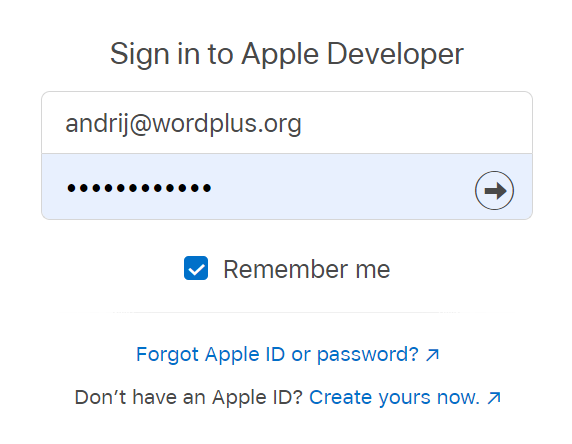
1. Login to Apple Developer Account
User you Apple ID and Password to login:
https://developer.apple.com/account/
 [/vc_column_text][/vc_column][/vc_row][vc_row][vc_column][vc_column_text]
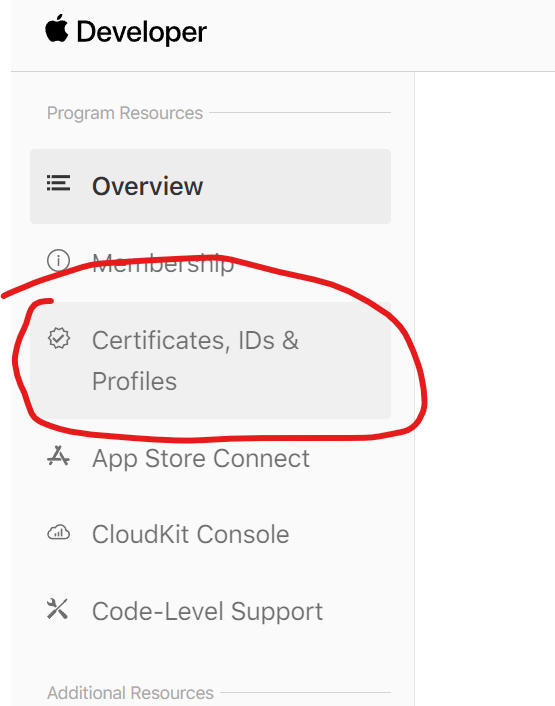
2. Navigate to Certificates, IDs & Profiles
 [/vc_column_text][/vc_column][/vc_row][vc_row][vc_column][vc_column_text]
3. Create a certificate
Press + button
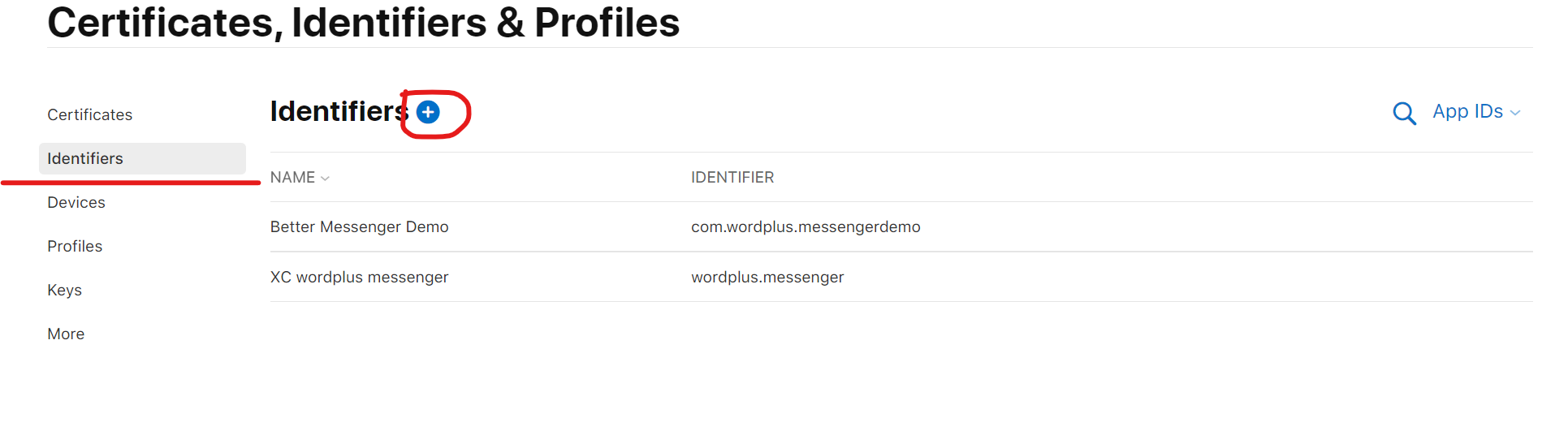
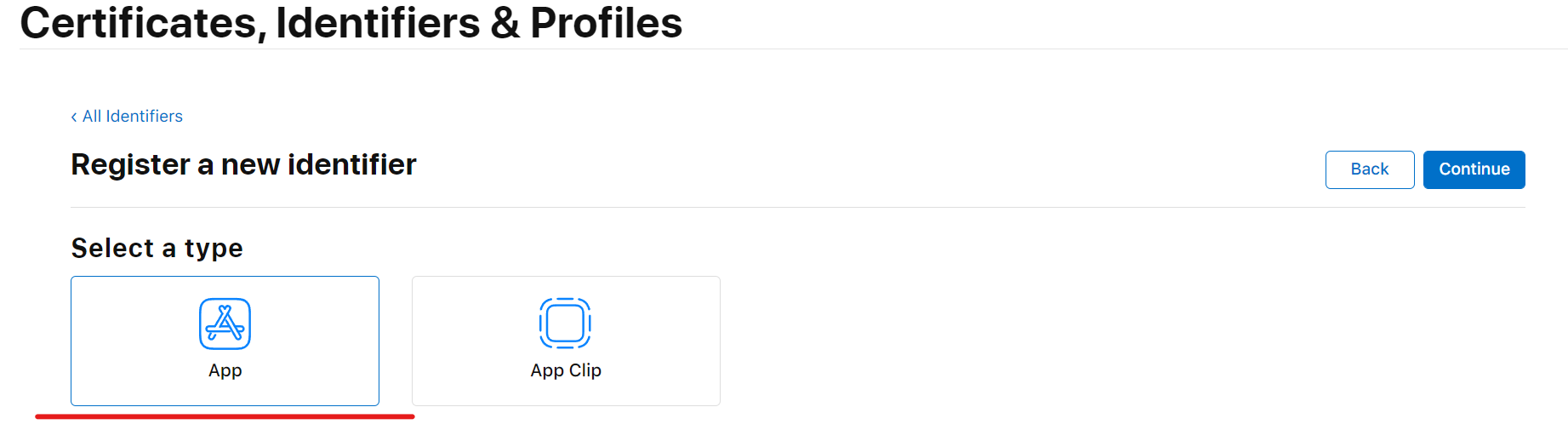
Select App IDs
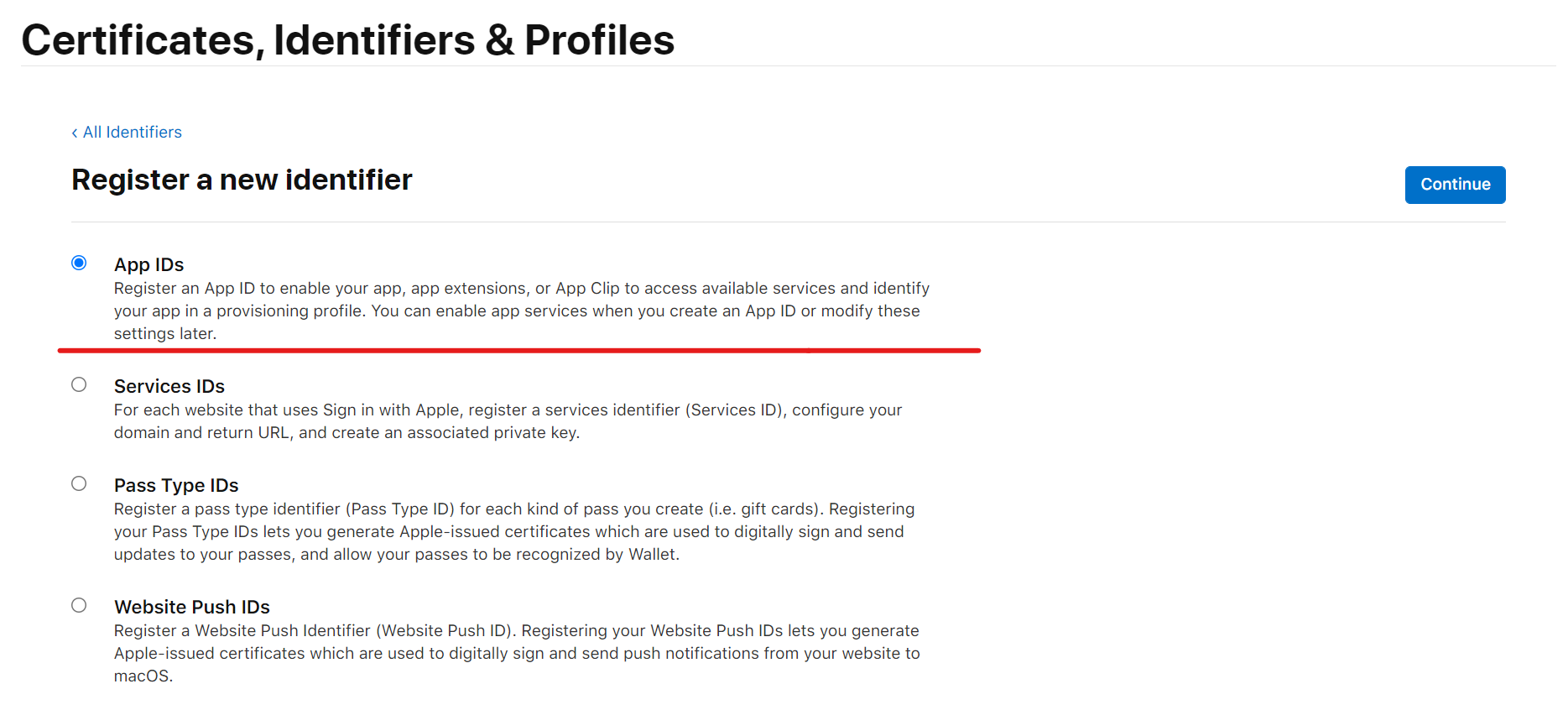
Select App
Specify Description and Bundle ID:
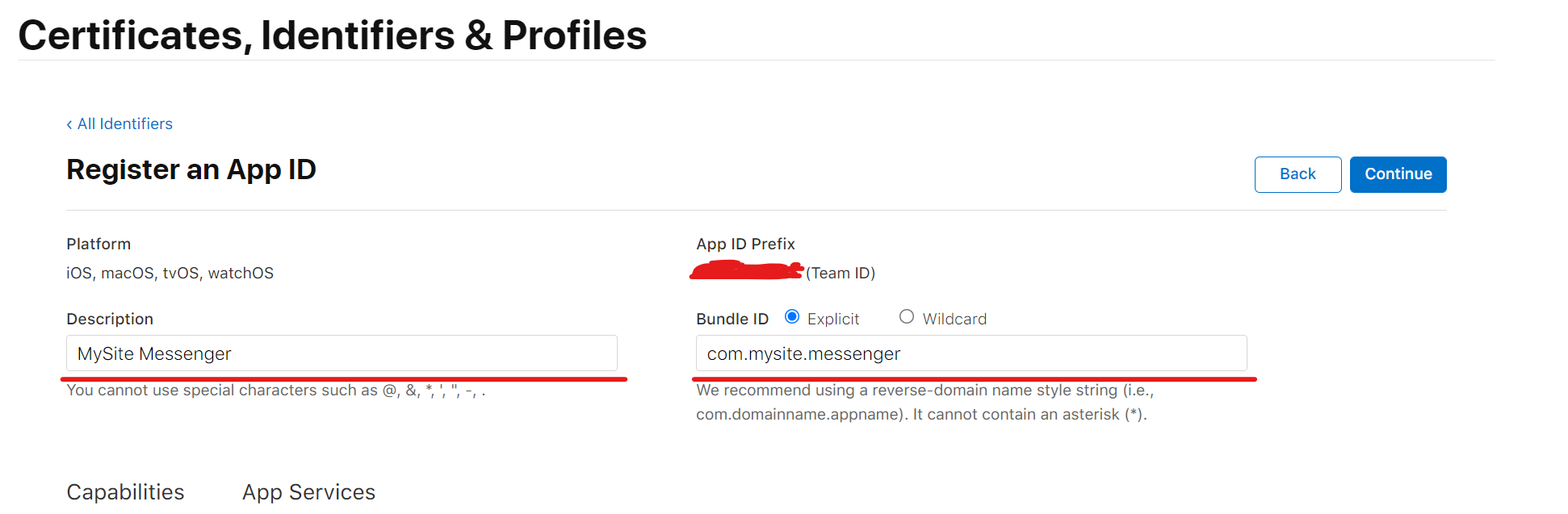
Enable capabilities for App Push Notifications:
- Communication Notifications
- Push Notifications
- Time Sensitive Notifications
And finish certificate creation process, which should result in newly created cerfticate.[/vc_column_text][/vc_column][/vc_row][vc_row css=”.vc_custom_1638720737276{margin-bottom: 0px !important;}”][vc_column css=”.vc_custom_1638720712373{margin-bottom: 0px !important;}”][vcex_heading text=”Creating iOS App” tag=”h1″ font_weight=”bold”][/vc_column][/vc_row][vc_row][vc_column][vc_column_text]
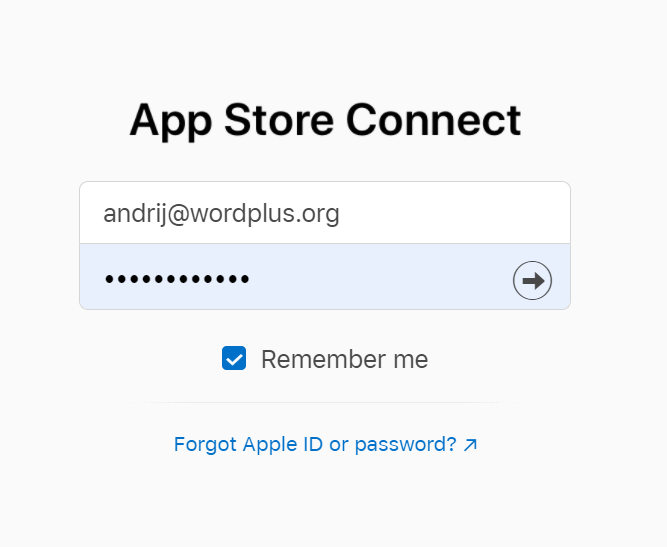
1. Login to AppStone Connect
User you Apple ID and Password to login:
https://appstoreconnect.apple.com/login
 [/vc_column_text][/vc_column][/vc_row][vc_row][vc_column][vc_column_text]
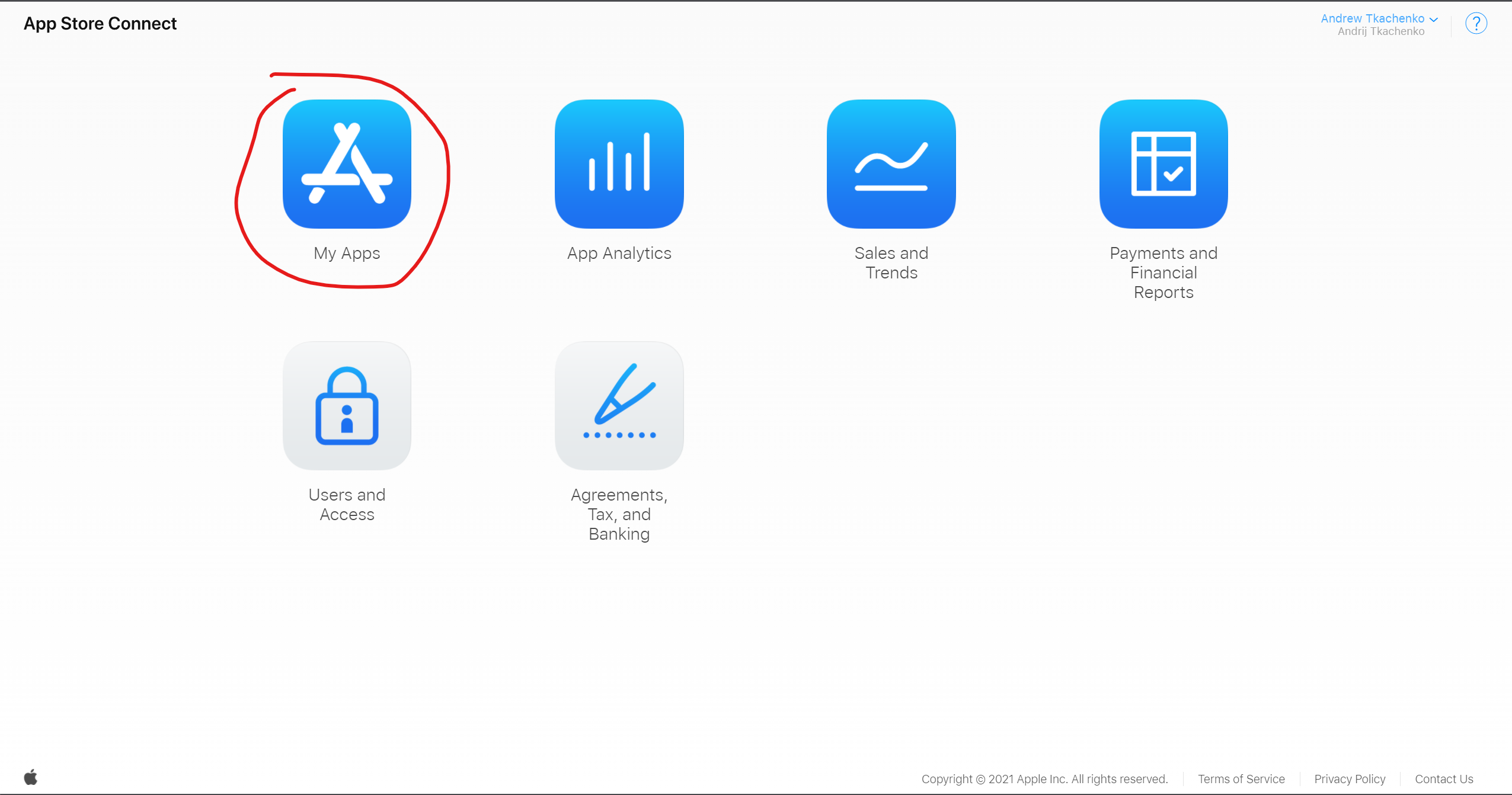
2. Go to My Apps
 [/vc_column_text][/vc_column][/vc_row][vc_row][vc_column][vc_column_text]
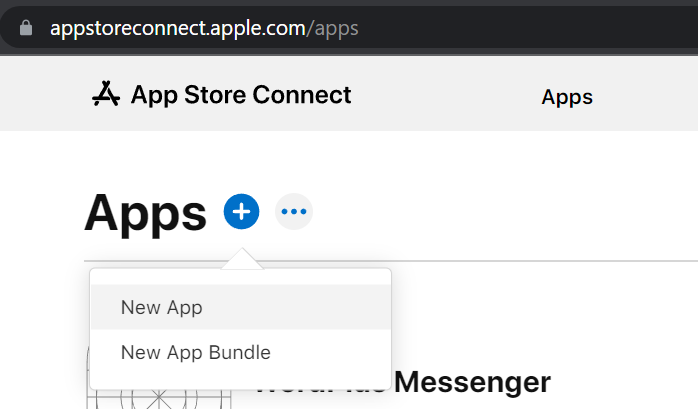
3. Click “New App”
 [/vc_column_text][/vc_column][/vc_row][vc_row][vc_column][vc_column_text]
4. Fill new application details
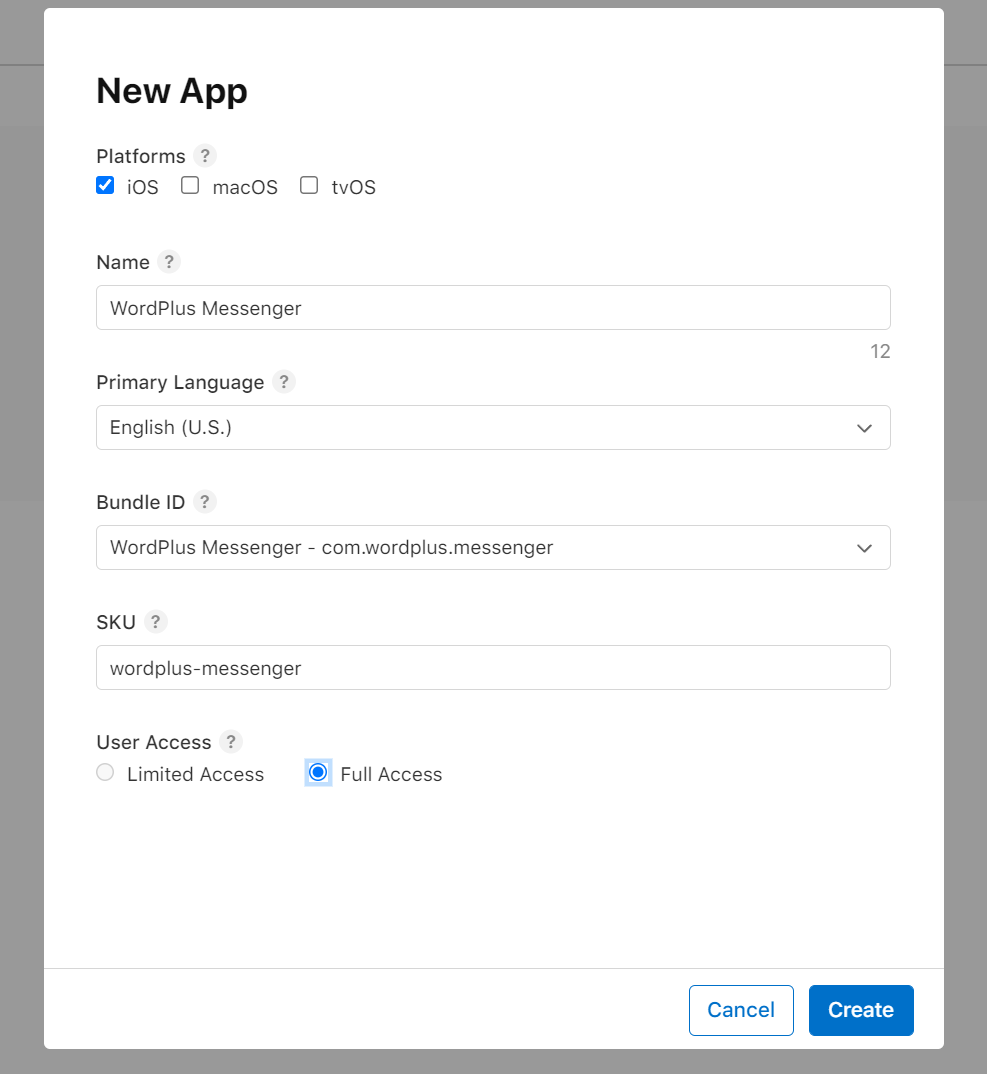
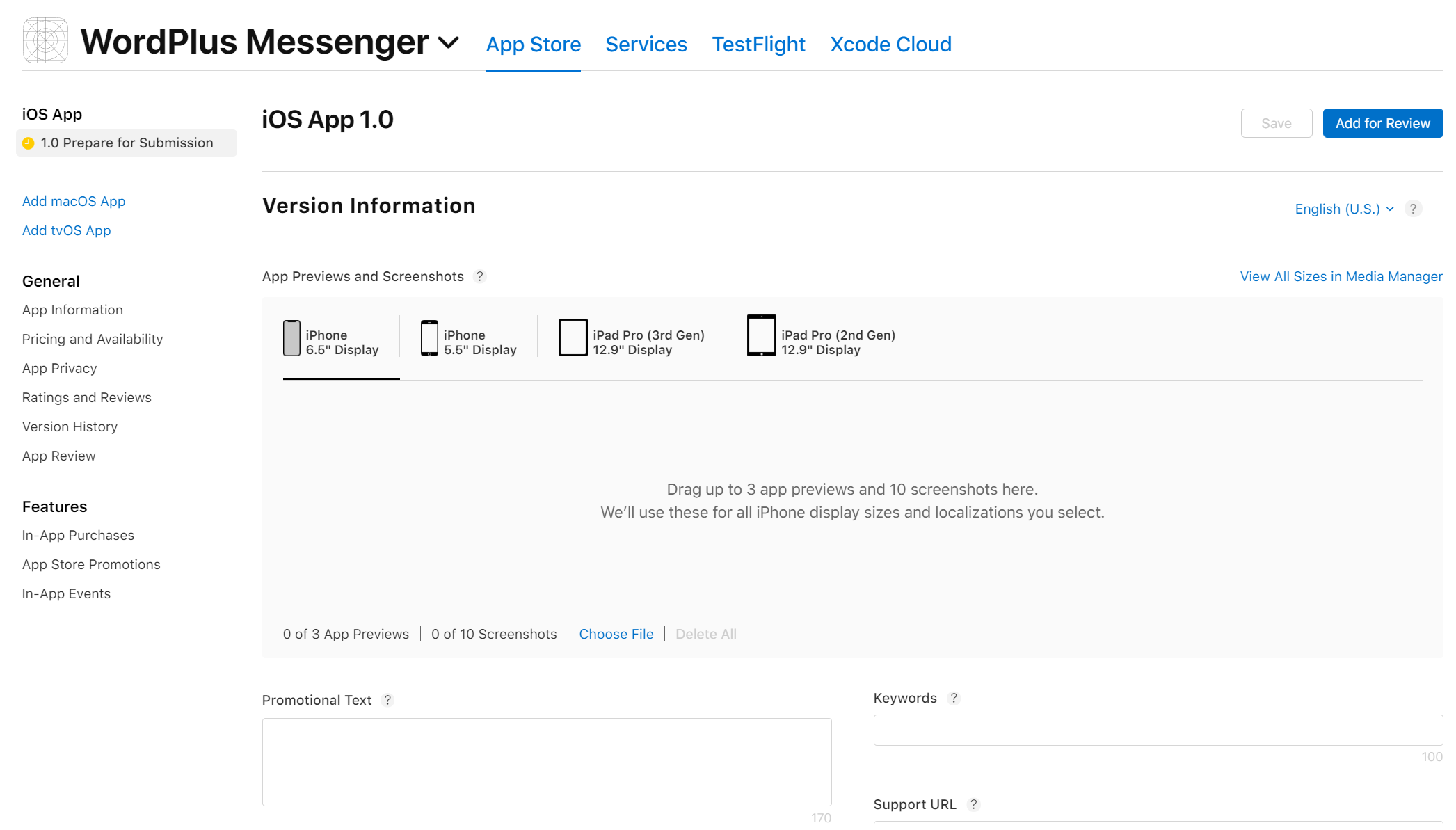
After all details filled press “Create”. This should result in newly created application in your App Store account.
 [/vc_column_text][/vc_column][/vc_row]